
Traditional / Getting started
Set up CafeCentro Traditional
Traditional setup begins with a store in your CafeCentro account. Install its customer PC client, enter the shop address, and wait for the PC to check in before testing a session.
On this page
Create a Traditional store
Sign in to CafeCentro and choose Traditional when creating your store. Verify the product selection before downloading an installer: Traditional and Cloud Timer have different setup paths.
Review the current Traditional plan, PC allowance, and setup instructions in your account. Use Traditional's own pricing details when budgeting for the installation.
Install and connect the customer PC
Begin with one PC and keep its seat number handy so you can identify it in the portal.
- Download the Traditional client from the product page or your account's installer area.
- Run the installer on the customer PC and follow the prompts for your version.
- Enter the shop address supplied for your Traditional store.
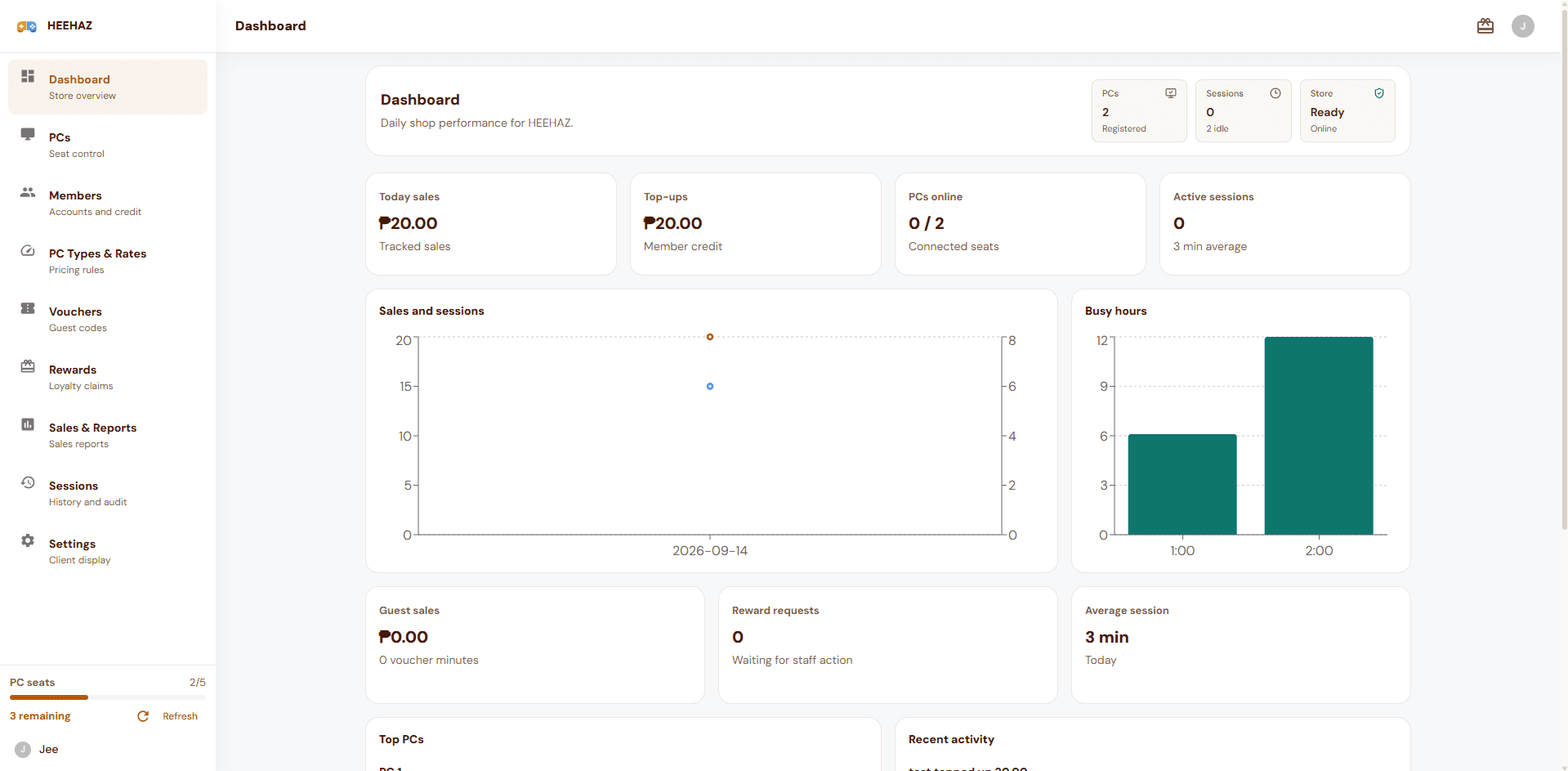
- Wait for the first client check-in, then open the Traditional store portal.
- Confirm the PC appears in the correct store with the intended display name and seat number.
Test the counter workflow
Review your rates before starting a test session. Check that the portal and the customer PC agree about the active session, then end it and verify the resulting history entry.
Practice the actions staff will use during a shift, including locating a PC and reviewing a completed session. Only enable workflows supported by your installed Traditional version and current plan.
- Confirm the PC belongs to the intended store.
- Check the configured price and the result of a short test session.
- Verify the customer screen responds to starting and ending the session.
- Repeat the connection check for every newly installed station.
If a PC does not appear
Check the shop address, internet connection, and client installation first. Confirm you are viewing the correct store rather than another store under the same account.
Use your account's Setup Guide for the current installation instructions. When requesting help, include the PC name, client version, and any visible error message. Avoid repeatedly creating replacement stores while diagnosing a connection issue.